Introduction to ComfyUI
What is ComfyUI?
ComfyUI is a node-based graphical interface for Stable Diffusion and other AI image generation models. Unlike traditional interfaces like Automatic1111 that use forms, ComfyUI exposes the entire generation pipeline as a visual graph.
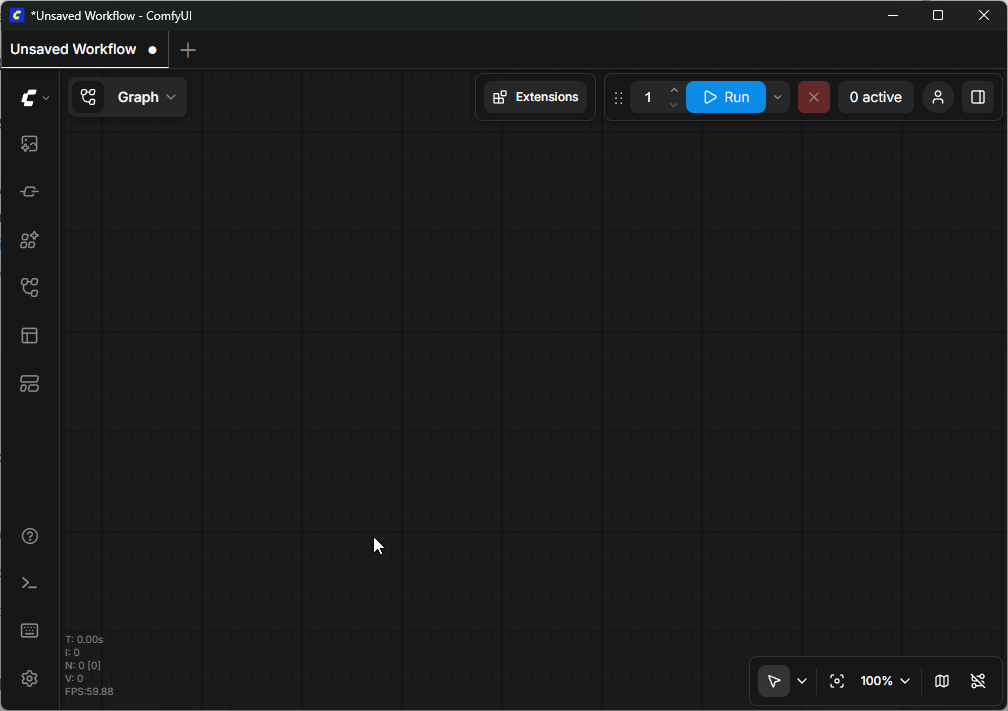
Each step of the process — model loading, text encoding, sampling, decoding — is represented by a node that you connect to others to create your workflow.
Why Choose ComfyUI?
Advantages
- Granular control: every pipeline step is visible and configurable
- Reusable workflows: saved as JSON, shareable with the community
- Performance: superior VRAM optimization compared to alternatives
- Extensibility: hundreds of custom nodes created by the community
- Transparency: you see exactly what happens at each step
Comparison with Alternatives
| Criterion | ComfyUI | Automatic1111 | Fooocus |
|---|---|---|---|
| Interface | Visual nodes | Web form | Simplified form |
| Learning curve | Medium | Easy | Very easy |
| Flexibility | Maximum | Good | Limited |
| VRAM performance | Excellent | Good | Good |
| Custom workflows | Yes (native) | Via scripts | No |
| Community | Very active | Very active | Active |
Fundamental Concepts
The Node Graph
In ComfyUI, everything is a node. A node takes inputs, performs processing, and produces outputs. A node's outputs connect to another node's inputs via edges.
Data Types
Connections between nodes carry different data types, identified by colors:
| Color | Type | Description |
|---|---|---|
| Purple | MODEL | The diffusion model (checkpoint) |
| Yellow | CLIP | The text encoder |
| Pink | VAE | The latent image decoder |
| Orange | CONDITIONING | The encoded prompt (positive or negative) |
| Light pink | LATENT | The image in latent space |
| Green | IMAGE | The final pixel image |
The Basic Workflow (text-to-image)
The simplest workflow to generate an image from text uses these nodes:
- Load Checkpoint — loads the model (.safetensors) and exposes MODEL, CLIP and VAE
- CLIP Text Encode (positive) — encodes your positive prompt
- CLIP Text Encode (negative) — encodes your negative prompt
- Empty Latent Image — creates a blank canvas at desired resolution
- KSampler — the core: performs iterative denoising
- VAE Decode — converts the latent result to a visible image
- Save Image — saves the result to disk
The ComfyUI Interface
Navigation
- Left click: select a node
- Right click on canvas: open the add node menu
- Scroll wheel: zoom in/out
- Middle click + drag: pan around the canvas
- Ctrl + S: save workflow
- Ctrl + Z: undo
The Control Panel
At the bottom of the screen:
- Queue Prompt: starts generation (or press Enter)
- Queue Size: number of images in queue
- Auto Queue: continuously generate automatically
Diffusion Models
- SD 1.5: Historical model, lightweight and fast. Native resolution: 512x512
- SDXL: Major improvement with 1024x1024 native resolution
- Flux: Next generation by Black Forest Labs. Excellent text rendering and photorealism
Resources and Community
- Official GitHub: the main ComfyUI repository
- ComfyUI Manager: essential extension manager
- CivitAI: model, LoRA and workflow sharing platform
- Reddit r/comfyui: active community for support
- OpenArt: library of ready-to-use ComfyUI workflows